Maze Navigation Project
The Problem
The problem statement is as follows: Navigate a maze by controlling your Create 3 robot via Airtable. Your partner will be in another room on Zoom, so you will need to find a way to attach a phone to your robot so it can see the maze.
Challenges:
- Use the Twist module
- Use Airtable API
- Create a modular way of controlling the robot
The Process
Code
This assignment was extremely software-heavy as the hardware was already taken care of by the Create 3 robot. We implemented software exclusively for this project.
We used an Airtable to keep track of our commands and the Twist module to command the robot to move in the X linear or Z angular directions. The code continuously checks the Airtable API, and when a specific command has a 1 in the on/off field, it will execute the command.
Website
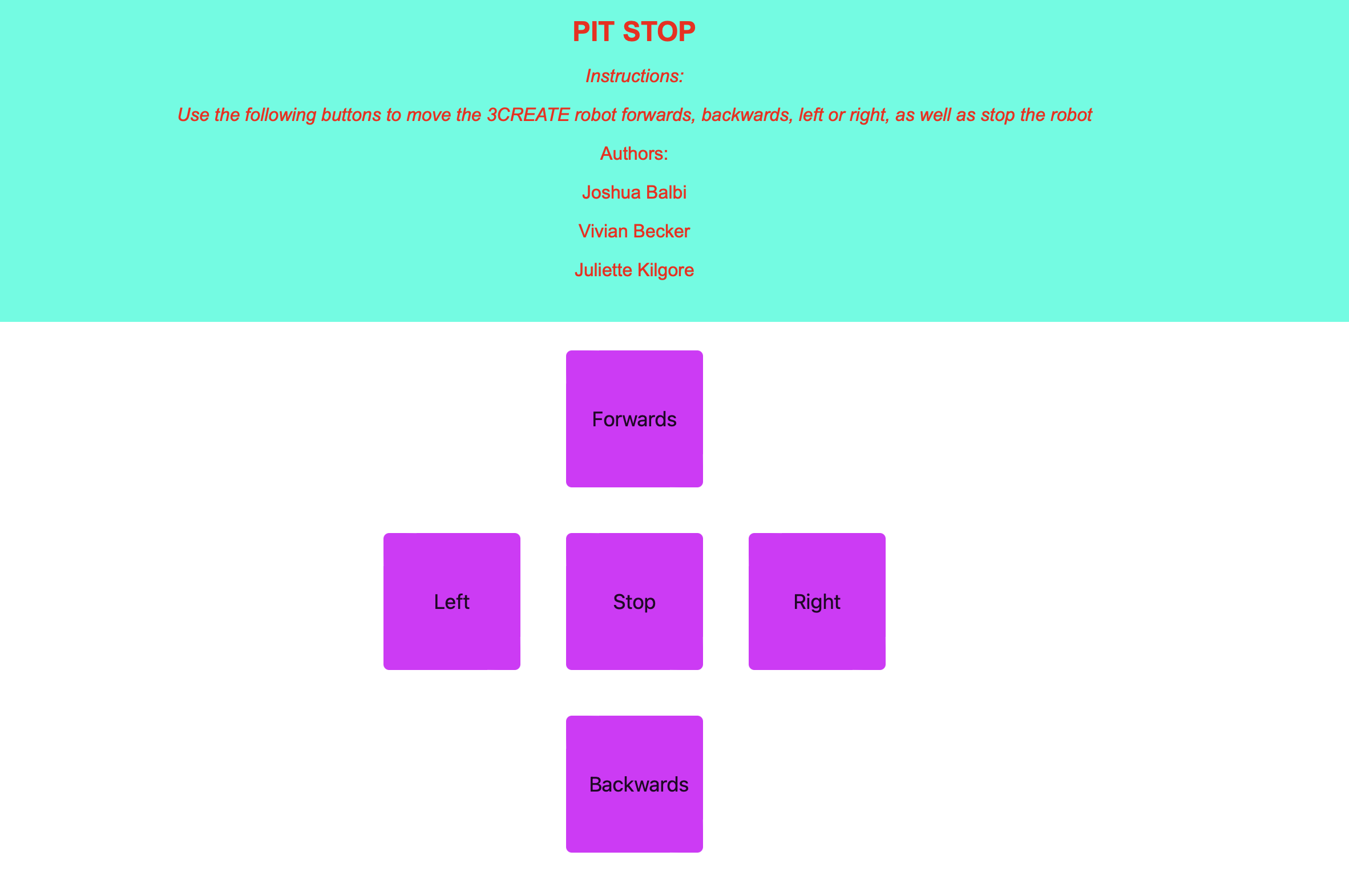
The website was created for ease of use. We wanted a way to control the robot without manually having to erase 0s and 1s from our Airtable. I created a website, and with the help of the Airtable API, it updates the Airtable to change values at the click of a button. The last command is set to 0 while the current command is changed to 1.
While the labeled buttons at the bottom left of the image worked as well, the group opted to use the keyboard to control the robot with arrow keys for direction and "S" for stop. The 3 gray circles are stoplight indicators that show if a command is successful or not. If it blinks green, the command went through successfully and Airtable updated. If it blinks yellow, the Airtable was not accessed because the command was already in motion. If it blinks red, then there was an error accessing Airtable.
The Solution
The following video is a clip of the team navigating through a maze in a remote location using our website, which updates Airtable as the Raspberry Pi constantly checks for changes and executes the necessary actions.